> ## Documentation Index
> Fetch the complete documentation index at: https://docs.blinko.space/llms.txt
> Use this file to discover all available pages before exploring further.
# 快速笔记
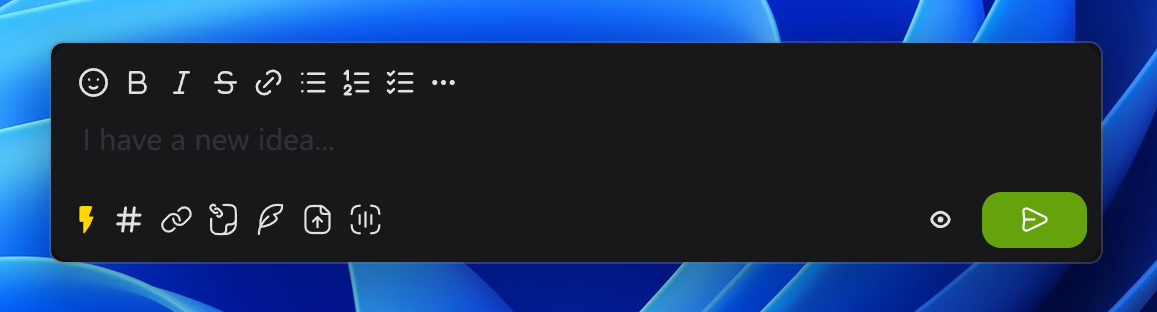
> 在任何地方快速打开Blinko记录想法
 ## 默认快捷键
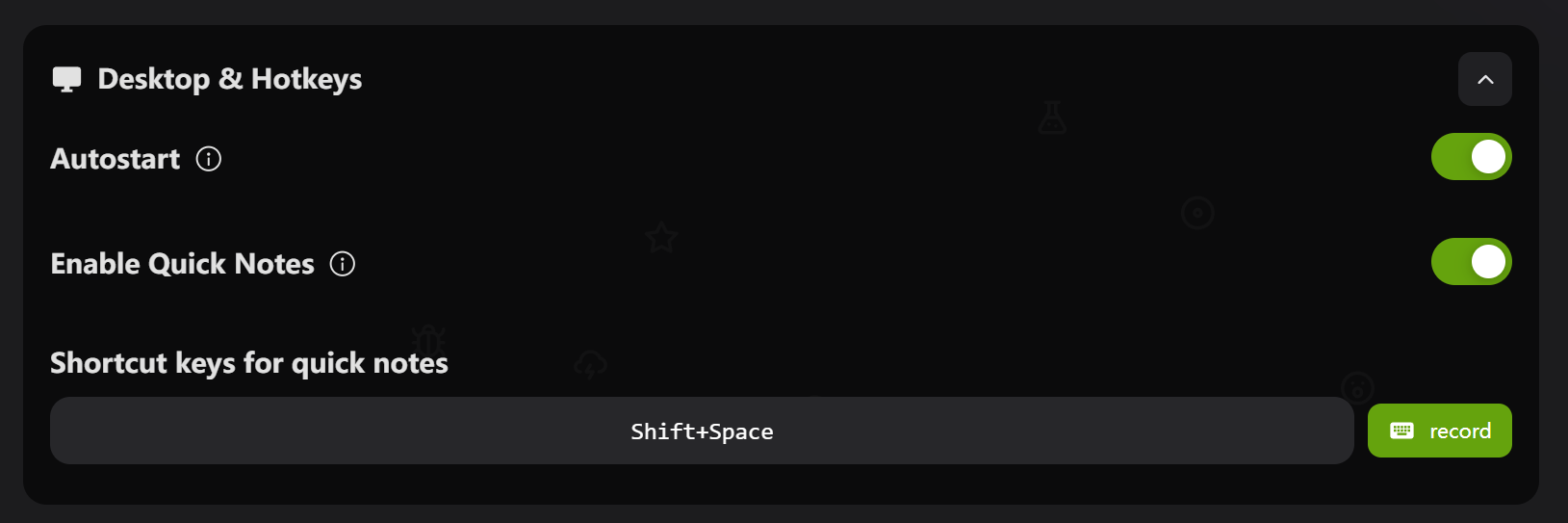
**`Shift + Space`** - 快速打开新建笔记窗口
## 如何设置
1. 打开设置 → Desktop & Hotkeys
2. 开启"启用全局快捷键"
3. 自定义快捷键:
* 点击快捷键输入框
* 点击"记录"按钮
* 按下想要的组合键
* 点击"停止"保存
## 使用方法
1. 在任何应用中按 `Shift + Space`
2. 输入你的想法或笔记
3. 按 `Ctrl + Enter` 保存
## 支持的按键
* **修饰键**:Ctrl/Cmd, Alt, Shift
* **字母数字**:A-Z, 0-9
* **功能键**:F1-F12
* **特殊键**:Space, Tab, Esc
## 常见问题
**快捷键不工作?**
1. 检查是否已启用
2. 重启Blinko
3. 检查与其他软件冲突
4. 尝试更换快捷键组合
**重置为默认**
点击设置中快捷键右侧的刷新按钮
## 默认快捷键
**`Shift + Space`** - 快速打开新建笔记窗口
## 如何设置
1. 打开设置 → Desktop & Hotkeys
2. 开启"启用全局快捷键"
3. 自定义快捷键:
* 点击快捷键输入框
* 点击"记录"按钮
* 按下想要的组合键
* 点击"停止"保存
## 使用方法
1. 在任何应用中按 `Shift + Space`
2. 输入你的想法或笔记
3. 按 `Ctrl + Enter` 保存
## 支持的按键
* **修饰键**:Ctrl/Cmd, Alt, Shift
* **字母数字**:A-Z, 0-9
* **功能键**:F1-F12
* **特殊键**:Space, Tab, Esc
## 常见问题
**快捷键不工作?**
1. 检查是否已启用
2. 重启Blinko
3. 检查与其他软件冲突
4. 尝试更换快捷键组合
**重置为默认**
点击设置中快捷键右侧的刷新按钮